

How to Run Profit and Revenue Optimization in Google Ads
How to run profit-optimized campaigns alongside your existing revenue campaigns, without changing your current setup or risking performance.
Overview
Follow this guide to leran how to run profit-optimized campaigns alongside your existing revenue campaigns, without changing your current setup or risking performance. Read this guide to learn more about Profit Optimization.
Most teams optimize every Google Ads campaign for revenue. With Elevar, you can send two separate purchase signals to Google Ads: one with revenue as the conversion value and another with profit. This lets you test profit optimization on specific campaigns while keeping everything else unchanged
Here's the high-level architecture:
Google Ads Goals
│
├─ Purchase (Revenue)  →  Primary
│   Used by most campaigns
│
└─ Purchase (Profit)   →  Secondary
    Used by selected campaigns
Revenue campaigns continue optimizing as they do today.
Profit campaigns use a Custom Goal to optimize for profit.
How to Run Profit and Revenue Optimization in Google Ads
Set Up Two Google Ads Destinations in Elevar:
- In your Elevar account, create two Google Ads destinations pointing to the same Google Ads Customer ID.
- (See Figure 1)
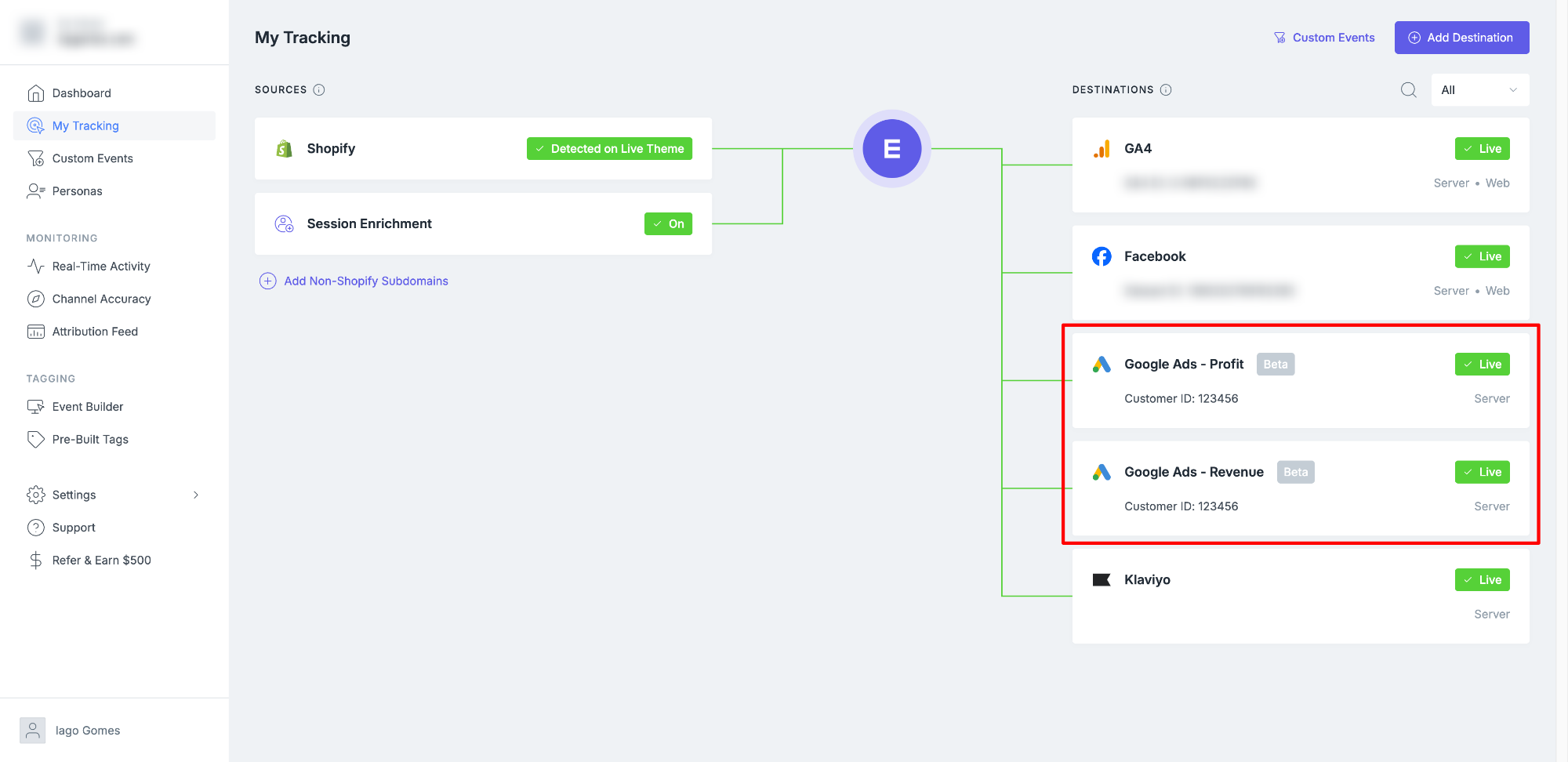
_Figure 1_
- Both destinations fire on the same purchase event, the only difference is the value attached:
| Destination | General Settings > Conversion Value |
|---|---|
| Google Ads - Revenue | Revenue |
| Google Ads - Profit | Profit/Net Revenue |
When Setting Up the Second Destination:In the Events step, select Customize settings and enable only the Purchase event. Your first destination already created the New/Returning Customer Purchase events, enabling them again would create duplicate conversion actions in your Google Ads account.
Confirm Conversion Actions in Google Ads:
- Go to Google Ads Conversions Goal Summary and verify you see both conversions.
- Elevar will create a new conversion action named Purchase (elevar server-side), 2 by default. We recommend renaming it to something clear like Profit Purchase (elevar server-side) so it's easy to identify across your account.
- (See Figure 2)
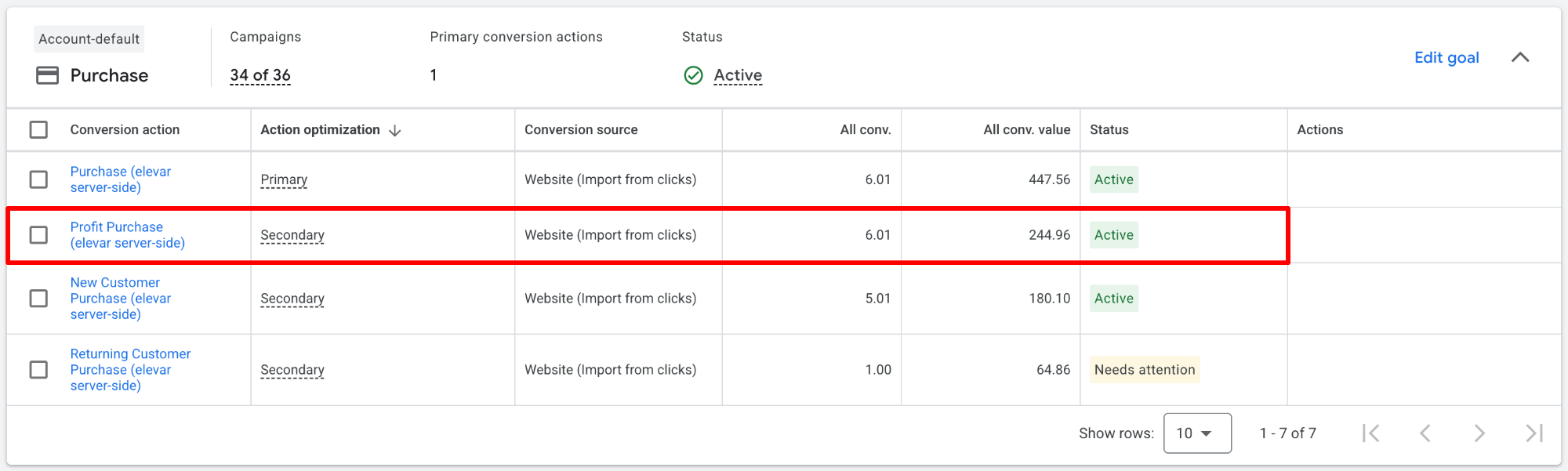
_Figure 2_
Important: Keep the Profit Purchase conversion as Secondary. This means it won't affect any existing campaigns.
Create a Custom Goal for Profit:
- Go to Google Ads Conversions Goal Summary.
- Scroll down to Custom goal section and click on "Add custom goal". Ensure that you name it something clear, like "
Profit Optimization" - Add the "Profit Purchase" conversion action to this custom goal.
- Once you have created the custom goal, click on the "Save" button located in the bottom right-hand corner of the window.
- (See Figure 3)
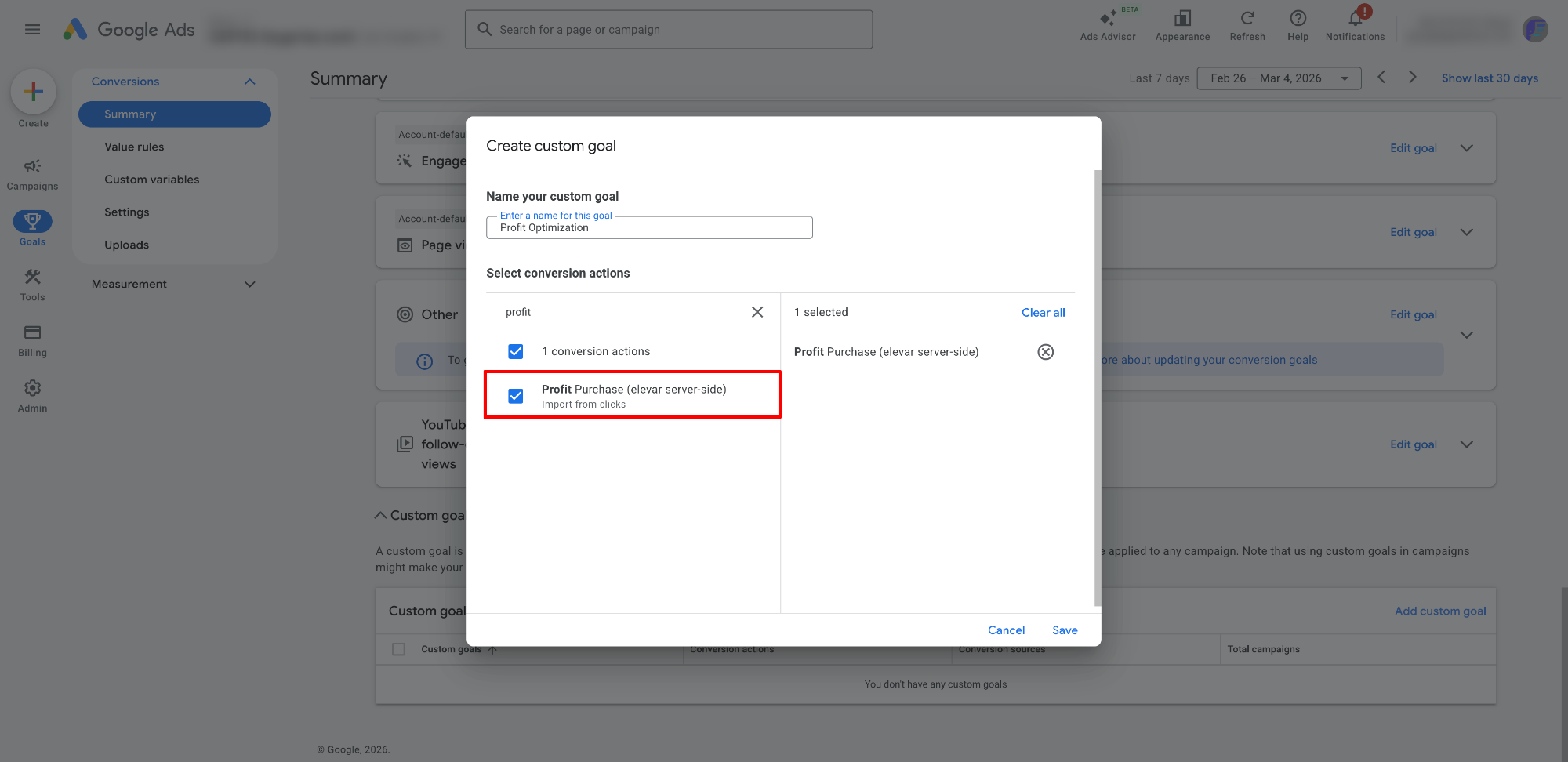
_Figure 3_
Creating a Custom Goal for Profit:Google Ads groups conversions by goal category (e.g. "Purchases"). If both conversion actions sit in the same category and are both Primary, campaigns can't pick just one, they'd optimize for both and double-count. The workaround is a Custom Goal.
Assign the Custom Goal to a Test Campaign:
- Pick one campaign to test profit optimization and open the campaign in Google Ads.
- Go to the Conversion goals settings and switch from Account-default to Campaign-specific.
- Click on the "Choose campaign goals" option and uncheck "Purchases" to remove the primary goal.
- Check "Profit Optimization" (your custom goal).
- Once you have assigned the custom goal to a test campaign, click on the "Save" button located in the bottom right-hand corner of the page.
- (See Figure 4)
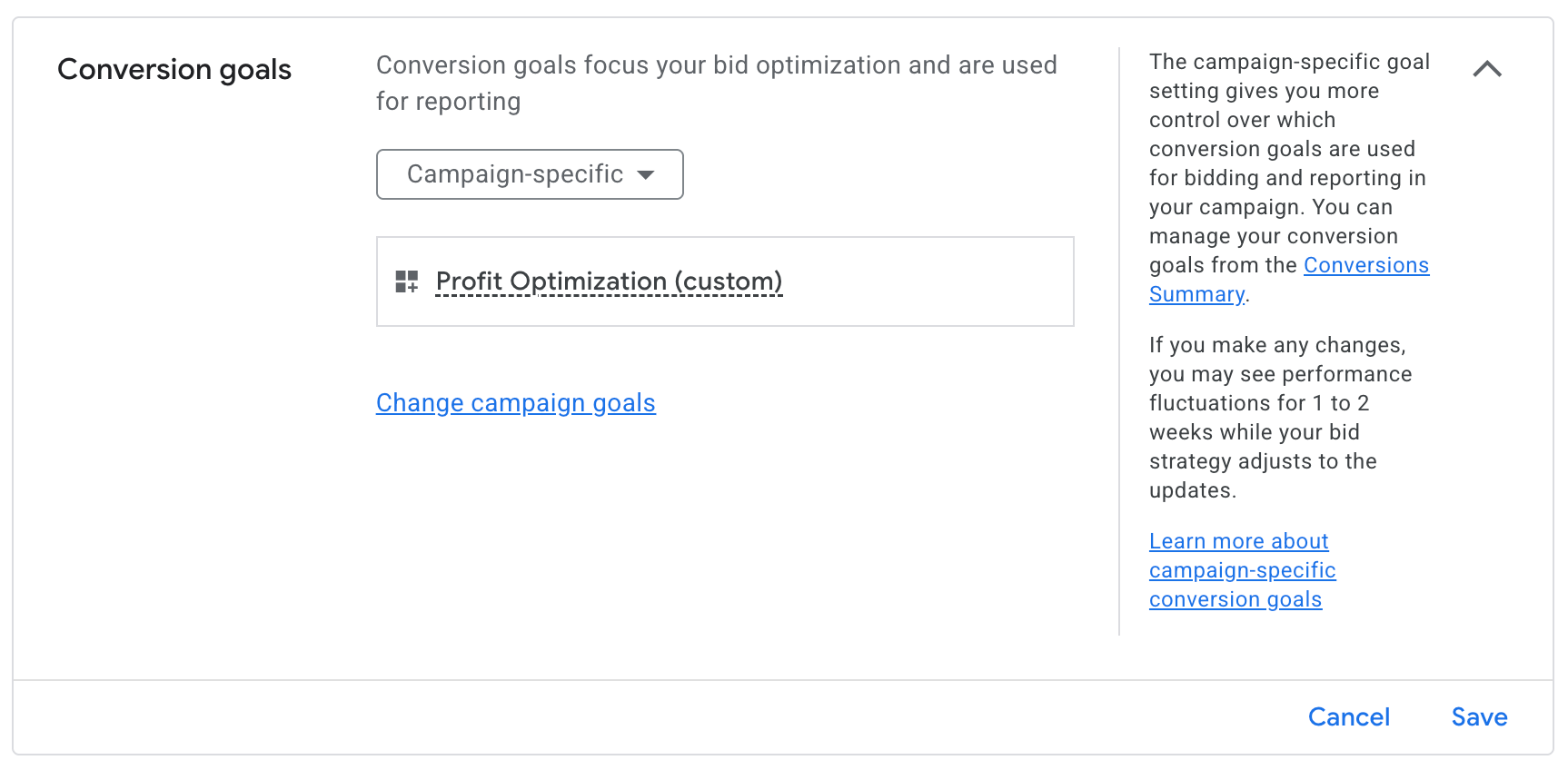
_Figure 4_
This campaign now optimizes for profit while every other campaign continues to optimize for revenue as usual.
Monitor and Compare:
Let both campaigns run for 2–4 weeks before drawing conclusions. Google's Smart Bidding needs time to learn the new value signal.
Important: Profit is a compressed value of the total purchase amount. A $200 order might have a profit of $40. This means campaigns optimizing for profit will always show lower conversion values, lower reported revenue, and lower ROAS/AOV compared to revenue campaigns, and that's expected. Don't compare these metrics side by side or you'll draw the wrong conclusions.
The right way to evaluate profit campaigns is to focus on actual business outcome. A profit-optimized campaign might drive less total revenue but more total profit.
Example:
| Campaign | Ad Spend | Revenue | Profit | ROAS | Profit/Spend |
|---|---|---|---|---|---|
| PMax (Revenue) | $10k | $120k | $24k | 12x | 2.4x |
| PMax (Profit) | $10k | $80k | $30k | 8x | 3.0x |
The profit campaign shows a lower ROAS (8x vs 12x) and less revenue ($80k vs $120k), but it generated $6k more profit with the same spend. That's the win.
Bottom line: When evaluating profit campaigns, focus on two things: total profit generated (is this campaign generating more profit?) and profit per dollar spent (are you getting a better return on ad spend when measured against profit?). If both are trending up, the campaign is working.
Frequently Asked Questions:
Will this affect my existing campaigns?
No. Your current campaigns continue using the account default (revenue). Only campaigns you explicitly switch to the Custom Goal will optimize for profit.
Does the Custom Goal warning in Google Ads matter?
Google shows a note that "custom goals might make your bid strategy work less efficiently." In practice, since the profit conversion is still a real purchase event with a value, Smart Bidding works well. The warning mostly applies to poorly constructed custom goals (e.g. mixing pageviews with purchases).
How long should I test before scaling?
Give it 2–4 weeks of consistent spend. Smart Bidding needs enough conversion data to learn the new value signal.
Updated 6 months ago