

How to Set Meta (Facebook) Action Source by Channel
Learn how to set Meta (Facebook) Action Source for a specific sales channel using Customize by Channel.
Overview
Follow this guide to learn how to customize Meta (Facebook) destination settings by channel in Elevar. This is commonly used when you want a specific sales channel (for example, ChatGPT Instant Checkout) to send events with a specific Action Source.
Prerequisites:
Before you begin, ensure that:
- You have setup the Meta (Facebook) as a destination in Elevar.
- Your implementation is sending a sales channel value that you can select as a Channel Code (for example, the sales_channel value sent in an API purchase payload).
How to Set Action Source to Chat by Channel in the Meta (Facebook) Destination
Access Meta (Facebook) Destination:
- Begin on the homepage of your Elevar Account and use the left-hand menu to click on the "My Tracking" tab.
- Navigate to your destinations and select the "Meta (facebook)" destination.
- (See Figure 1)

_Figure 1_
Access Advanced Options:
- Once you have accessed the the Meta (Facebook) destination, use the "Setup Steps" navigation box to locate and click on the "Meta Facebook Settings" tab.
- Once in the Meta (Facebook) settings, locate and click on the "Advanced Options" drop-down menu.
- Within the Advanced Options, locate and click on the "Customize by Channel" button.
- (See Figure 2)
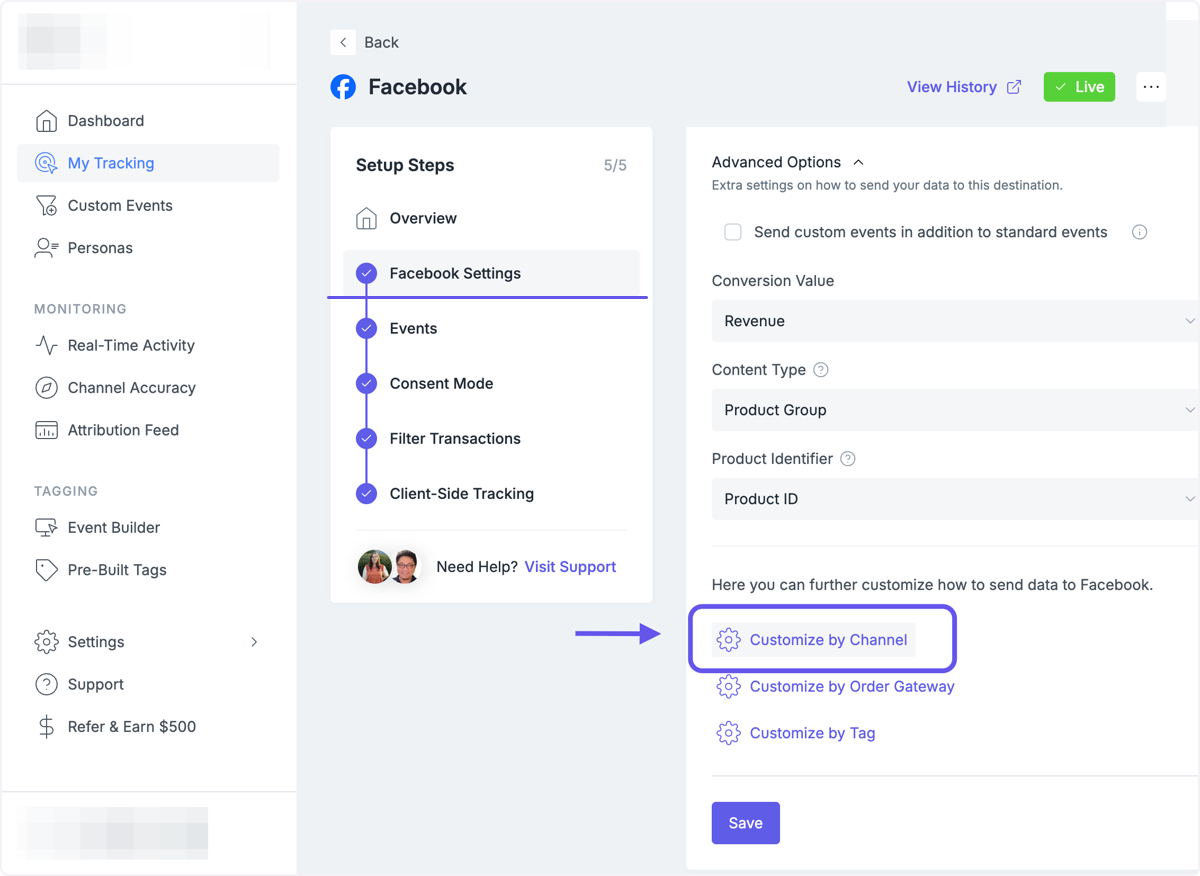
_Figure 2_
Customize by Channel:
- Once you have accessed the Customise by Channel section of the Meta (Facebook) settings, you will need to configure the specific custom channel.
- Navigate to the section titled "Channel Code" and use the text box to enter the desired channel. This should match the sales channel identifier for the orders you want to classify.
- Navigate to the section titled "Action Source" and use the drop-box to select the destired action source.
- (See Figure 3)

_Figure 3_
Save Changes:
- Once you have entered all of the required information setting up Meta (Facebook) action source by channel, be sure to save your changes.
- Click on the "Save" button located at the bottom of the page.
- (See Figure 4)

_Figure 4_
(Optional) Confirm Filter Transactions:
- If you are blocking certain order channels in Meta, you will need to ensure your selected Channel Code is not blocked.
- Within the the Meta (Facebook) destination, use the "Setup Steps" navigation box to locate and click the "Filter Transactions" tab.
- Navigate to the "Block some transactions" section of the page and confirm the channel you customized is not being blocked.
- If it is blocked, ensure that youremove it and click on the "Save" button located at the bottom of the page.
- (See Figure 5)

_Figure 5_
Updated 8 months ago
Did this page help you?