

How to Choose What Product Identifer to Use in Your Google Ads Destination
Step by step guide on finding which product identifier to select in your Elevar Google Ads Destination
1. Pull up products from your Merchant Center Feed.
This can be done in Google Ads by going to Campaigns -> Products.
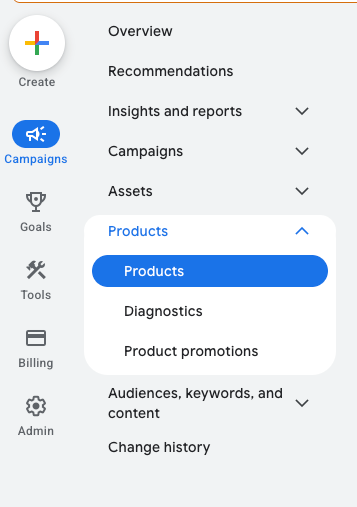
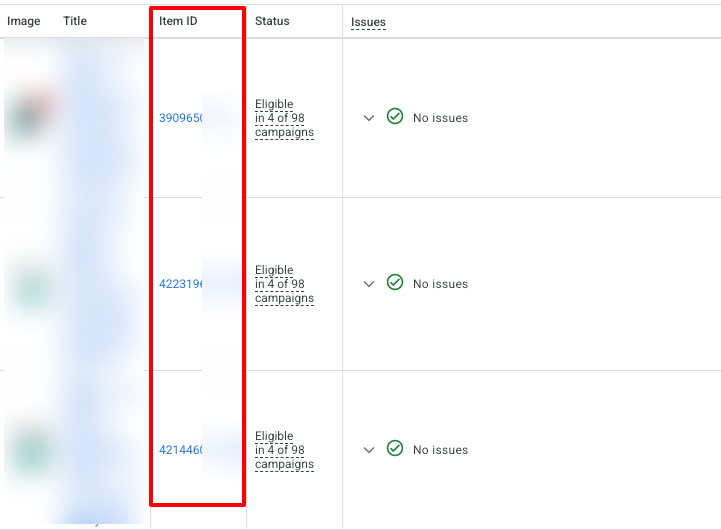
2. Note the "Item ID" for a few products on the resulting page.
Make sure you are looking at a recent date range and at active product listings.
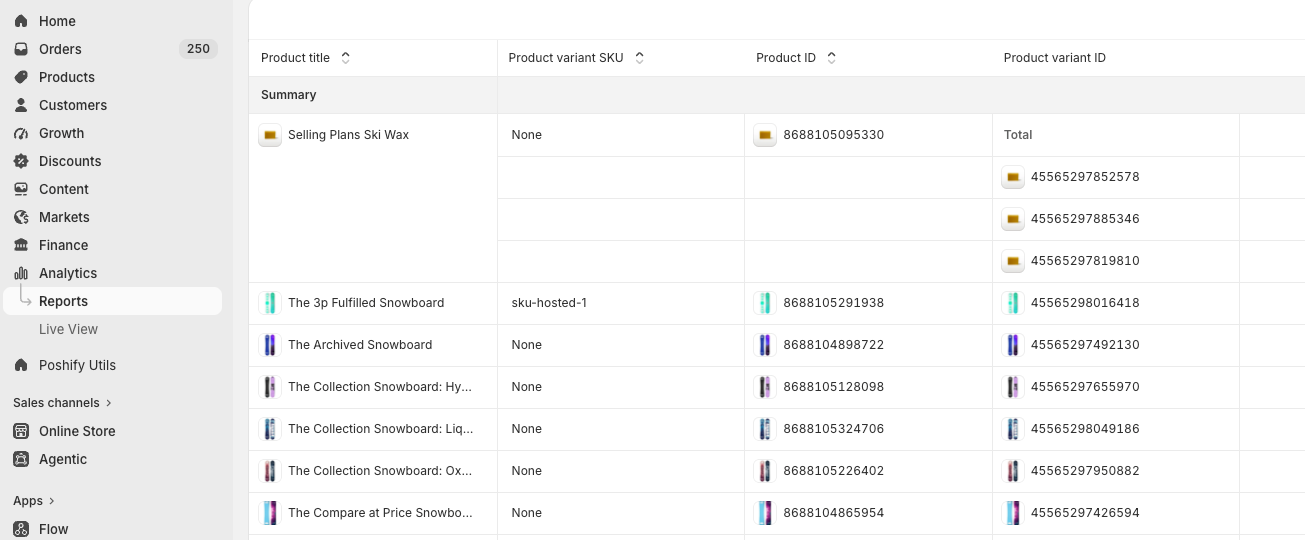
3. In your store admin, pull up a report of Products including all the available IDs for a product.
For Shopify, these include Product variant SKU, Product ID, and Product variant ID.
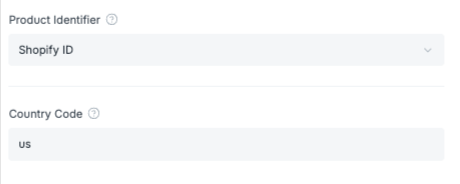
4. In your Elevar destination config, select the Product Identifier that matches the ID you saw in your Merchant Center Feed.
Here are mappings for Shopify:
| Shopify UI Field | Elevar Option |
|---|---|
| Product variant SKU | Product SKU |
| Product ID | Product ID |
| Product variant ID | Variant ID |
If your Merchant Center Item ID is instead a combination of Product ID and Variant ID in the form shopify_xx_Product ID_Variant ID, select "Shopify ID" in your Elevar destination config.
You will then be asked to provide the country code included in the Shopify ID. For example, if you see "shopify_us_8688105291938_45565298016418", add "us" as your country code. Pay attention to casing, as product ID matching is case sensitive. (If you see "shopify_US_8688105291938_45565298016418", add "US" as your country code.)
Updated 21 days ago