

How To Create Conversion Events in OpenAI
Overview
Follow this guide to learn how to create conversion events in OpenAI. Once your OpenAI tracking is in place, you will need to create Conversion Events in the OpenAI UI in order to view event data and use the conversions to optimize campaigns.
How To Create Conversion Events in OpenAI
Access Conversion Events:
- Once you have logged into your OpenAI Ads Manager account, use the left-hand navigation menu to click on the "Tools" tab. An additional drop-down menu will appear, click on the "Conversions" tab.
- Once you have accessed the Conversions page, use the top menu to click on the "Conversion Events" tab.
- (See Figure 1)
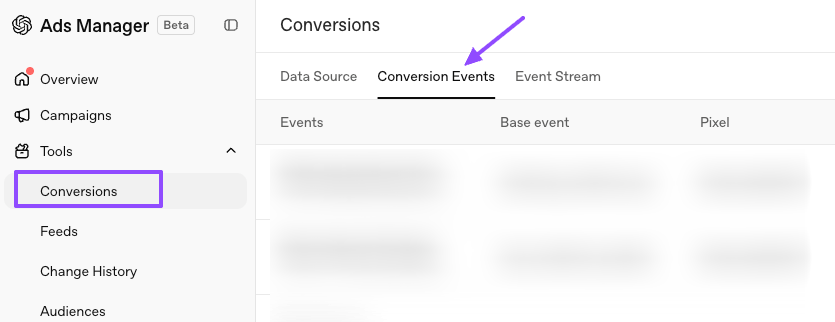
Figure 1
Create Conversion Event:
- Click on the "Create" button located in the upper right-hand corner of the page.
- An additional menu will appear, click on the "Conversion Event" option.
- (See Figure 2)
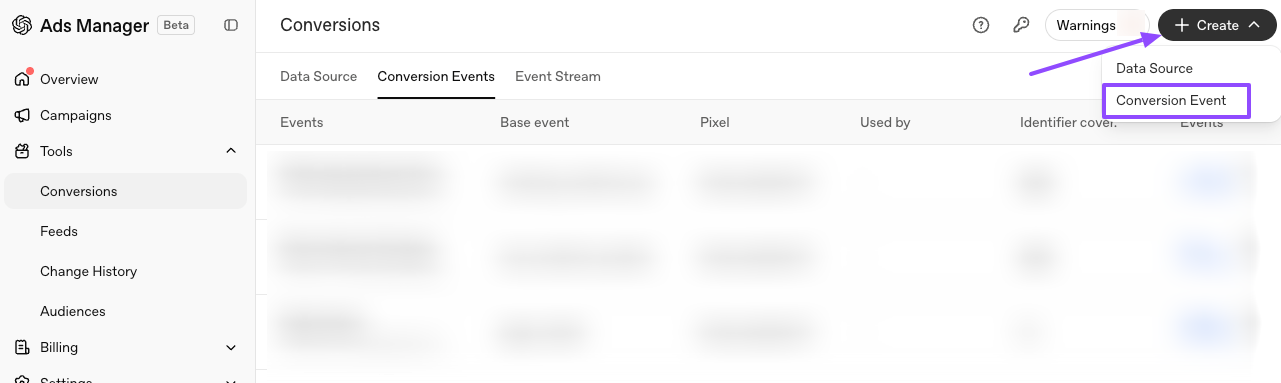
Figure 2
Edit Conversion Event Details:
- When creating your Conversion Event, you will need to enter the conversion event details. Refer to the below table for available events.
| Elevar Event | Base Event | Custom Event Name |
|---|---|---|
| Page View | page_viewed | n/a |
| View Item | contents_viewed | n/a |
| Add To Cart | items_added | n/a |
| Begin Checkout | checkout_started | n/a |
| Purchase | order_created | n/a |
| New Customer Purchase | custom | new_customer_purchase |
| Returning Customer Purchase | custom | returning_customer_purchase |
| Subscription Purchase | subscription_created | n/a |
| Account Sign Up | registration_completed | n/a |
| Email Sign Up | lead_created | n/a |
| SMS Sign Up | custom | sms_signup |
| Start Trial | trial_started | n/a |
| Schedule | appointment_scheduled | n/a |
Create Conversion Event:
- Once you have entered all of the required information for the new conversion event, click on the "Create" button located at the bottom right-hand corner of the window.
- (See Figure 3)
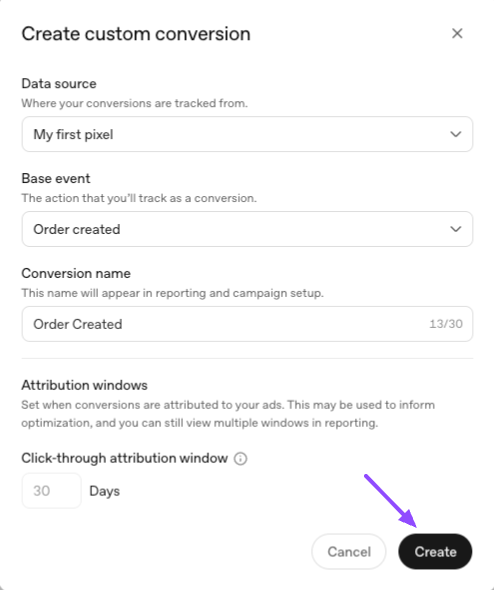
Figure 3
Repeat for every event you'd like recorded in OpenAI.
Updated about 1 hour ago
Did this page help you?