

How to Set Up AppLovin as a Server-Side Destination
Follow the step-by-step guide to launching your AppLovin Pixel and CAPI integration through Elevar's server-side destination
Overview
Follow this guide to learn how to set up AppLovin as a Server Side Destination.
Prerequisites:
In order to deploy AppLovin server-side conversion tracking you'll need to install our Shopify Source.
How to Set Up AppLovin as a Server-Side Destination
Locate AppLovin Destination:
- Begin on the Elevar Dashboard and use the left-hand navigation menu to access the "My Tracking” page.
- Once in "My Tracking", select the "Add Destination" button in the upper right hand corner of the page.
- A side bar pop-up window will appear, titled "Add Destination".
- Within this pop-up, use the search function and type "AppLovin".
- Once the AppLovin destination appears from the search function, click on it.
- (See Figure 1)
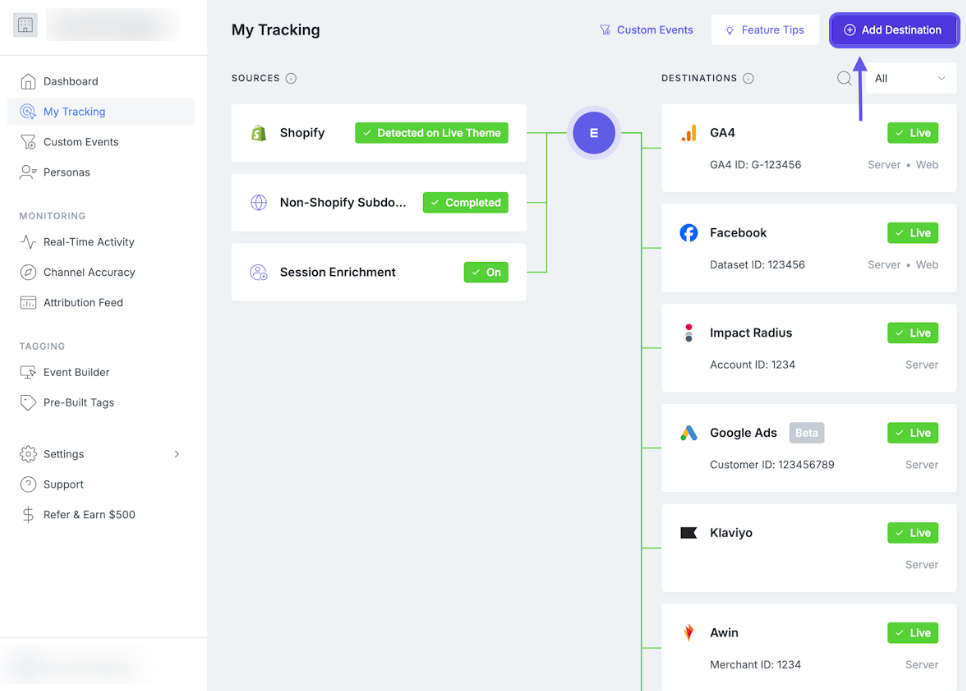
Figure 1
Get Started:
- After locating and clicking on the AppLovin destination, you will be taken to an Overview screen.
- Click the "Get Started" button in the lower left-hand corner of the Overview box.
- (See Figure 2)

Figure 2
Entering AppLovin Settings
General Settings:
- Within the "General Settings", you will need to enter your AppLovin Event Key and Default Category ID.
- Add in your AppLovin Event Key
- Add in your Default Category ID
- This will be the category ID we send for all of your products unless you specify further category IDs in Advanced Options. If you do define additional category IDs we will use the Default Category ID as the fallback value if none of your defined rules are met.
- To add additional Category IDs, expand Advanced Options and Select "Specify Additional Category IDs".
- If you have "Markets" enabled in your Shopify Source, you will see the "Markets" section in your AppLovin destination.
- Select either the "All Markets", "Specific market(s)", or the "No Market ID" button to specify which markets will send data to AppLovin.
- If you have selected "All Markets" navigate to the section titled "Destination Label" and use the text box to enter a label. This is how your destination name will appear across the Elevar app (e.g., My Tracking, Reports, History) and helps to identify your destination across our app, especially when you have multiple instances of the same destination.
- If you have selected "Specific market(s)", navigate to the section titled "use the drop down menu to select the market groups to specify which market's data will be sent to this destination. Then, navigate to the box titled "Destination Label" and use the text box to enter a label. This is how your destination name will appear across the Elevar app (e.g., My Tracking, Reports, History) and helps to identify your destination across our app, especially when you have multiple instances of the same destination.
- Once you have entered the required AppLovin settings, click on the "Save and Continue" button at the bottom of this section.
- (See Figure 4)

Figure 4
Select Events:
- Once you have entered your AppLovin Settings, you have to select the Event settings.
- Either leave "Use best practices" selected or click "Customize settings".
- After selecting what events you want to send, click on the "Save and Continue" button located at the bottom of this section.
- (See Figure 5)

Figure 5
If you are a subscription business then you have the option to also enable the "Subscription Purchase" event.Selecting this option will trigger a "Subscribe" event to fire anytime your customers purchase a subscription (e.g. Subscription First Order). If you also sell one-time products via native Shopify checkout then this event can help you distinguish between first-time and subscription purchases inside of AppLovin.
Consent:
- After selecting the Events settings, you will be asked whether you'd like to enable Consent.
- To enable Consent, click on the "Yes, enable for this destination" button. Then navigate to the section of the page titled "What consent categories should a shopper accept before tracking fires?" and use the checkboxes to enable the desired consent categories. The "Ad Storage" and "Analytics Storage" options are the most popular consent categories for AppLovin.
- If consent is required, select what categories you’d like the shopper to agree to before tracking fires. [Learn More]
- If you do not want to enable Consent, click on the "No" button.
- Once you have selected all of the information for enabling Consent, click on the "Save and Continue" button located at the bottom of this section.
- (See Figure 6)

Figure 6
Enabling Consent:By enabling consent, your marketing data processing will depend on:
- Your consent platform configuration
- How your visitors interact with the cookie banner
- What geolocation they visit the store from
That's why you may see a decrease in data across your marketing platforms and lower marketing campaign performance.
For EU Stores: If you are making your tracking setup consent compliant for the first time, you may see a 10-80% decrease in data across all of your marketing destinations.
Filter Transactions:
- After selecting the consent mode, you need to choose whether or not to filter transactions.
- Currently, our recommended practices suggests selecting the "Yes, block" button which blocks exchange and historical import orders.
- Or if you would like to allow specific transactions, click on the "Yes, allow specific transactions" button which includes the "web" sales channel to allow orders created on your website to be sent to this destination.
- If you do not want to filter transactions, click on the "No, send" button.
- Once you have selected all of the information for Filtered Transactions, click on the "Save and Continue" button at the bottom of this section.
- (See Figure 7)

Figure 7
Learn More: Filtering TransactionsThinking you may need to block additional orders? Learn how to block these orders in this guide.
Not sure if you need to block orders? Look at what Sales Channels you have in Shopify!
Client-Side Tracking Setup:
- After selecting details for filtering transactions, you need to set up client-side tracking.
- Click on either the "Using Elevar" button for Elevar to handle the client-side tags, or click on the "Using Google Tag Manager" button if you prefer to use GTM.
- If using GTM, click on the "Mark as Complete" button at the bottom of this section after setting up the web container.
- (See Figure 8)

Figure 8
Go Live:
- After completing all of the previous AppLovin Setup Steps, an Overview page will appear.
- If all of the details within the Configuration Summary look correct, then click on the button labeled "Go Live" at the bottom of this section.
- A pop-up window will appear, asking for a confirmation of your changes.
- Click on the "Yes, Go Live" button located in the lower right-hand corner of the confirmation window.
- (See Figure 9)

Figure 9
Remove Previous Tracking:To avoid duplicate events sent to your destination, we recommend removing your previous tracking.
Follow this guide to learn how to remove previous tracking.
If you are using the Shopify AppLovin app:Do NOT uninstall the AppLovin app. Instead, disable sending data via the AppLovin app.
Follow this guide to learn how to do this.
This will keep the AppLovin product catalog and order history import functioning, while allowing you to use Elevar for your pixel and CAPI integration.
Updated 1 day ago